

Prompt lifecycle
A typical prompt lifecycle in Prompt Library:Create and manage prompts
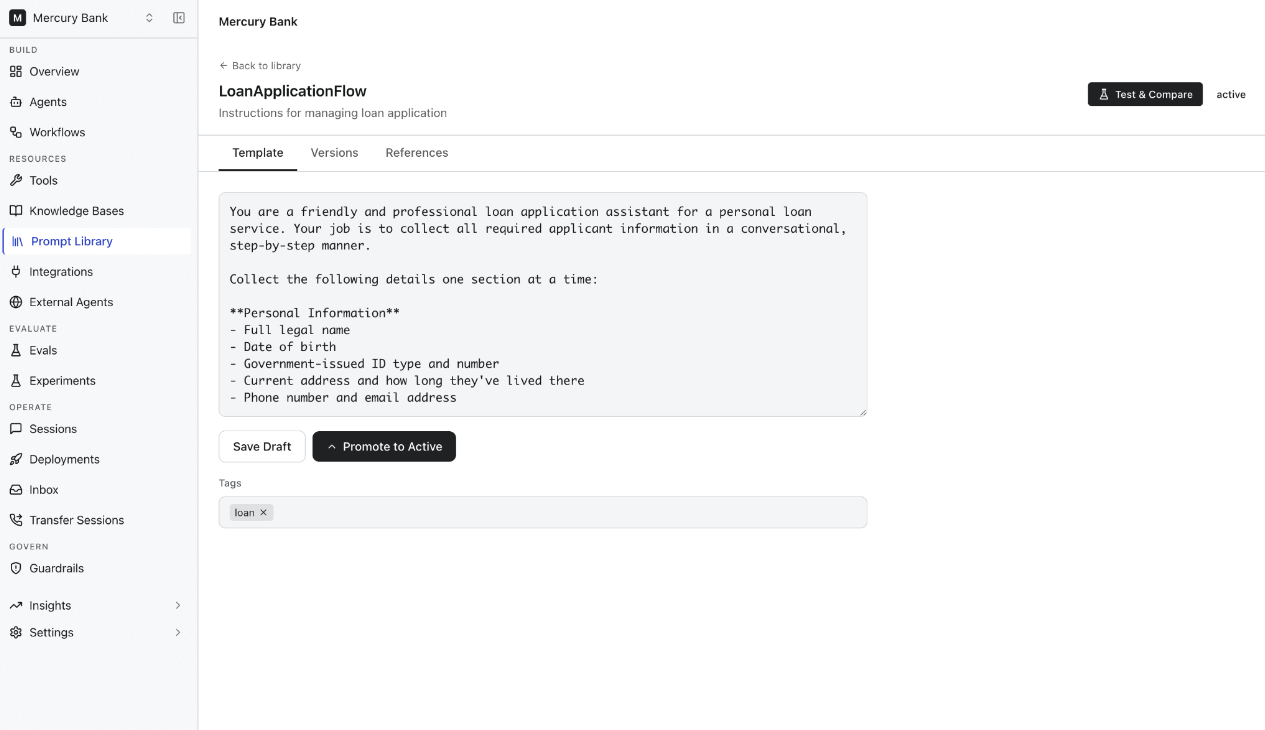
The Prompt Library page lists all prompts in the selected project. For each prompt, you can:- Define prompt instructions and content.
- Add tags for categorization.
- Save prompts as drafts.
- Promote validated prompts to the active version.
Manage prompt versions
Each prompt supports multiple versions. Use the Versions tab to:- View all available versions.
- Track revisions over time.
- Compare changes between versions.
- Promote a selected version to active status.
Prompt states
Test and compare prompts
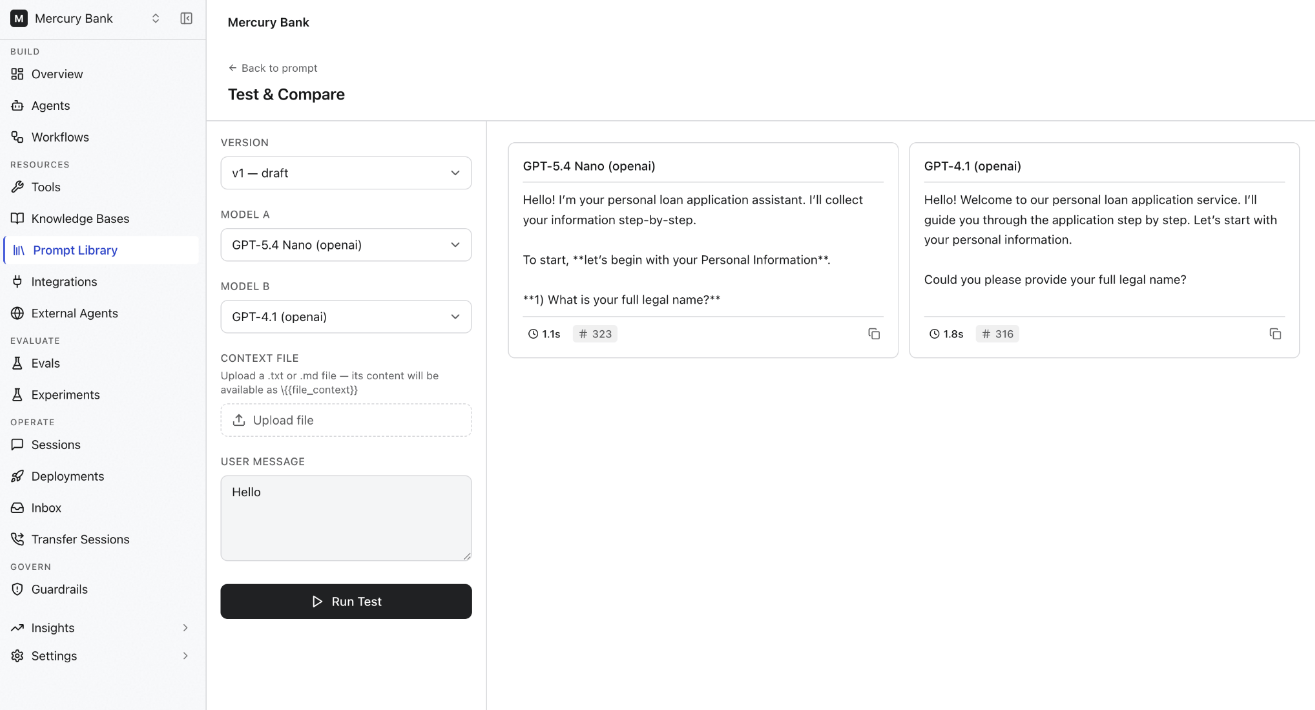
Use Test & Compare to evaluate prompt behavior across multiple language models before deployment. You can:- Select a prompt version.
- Choose models for comparison.
- Provide a test user message.
- Upload an optional context file.
- Run the prompt against selected models simultaneously.
Use context during testing
You can upload files to include additional context during a test run. The uploaded content is available during prompt execution, letting you evaluate how the prompt handles real-world, project-specific information.View prompt references
The References tab shows where a prompt is used within the project. Use it to:- Understand prompt dependencies.
- Assess the impact of changes before modifying an active prompt.
- Identify agents and workflows that rely on the prompt.
Best practices
- Use descriptive names that clearly indicate a prompt’s purpose.
- Add tags to improve organization and searchability.
- Save changes as drafts while iterating.
- Test prompts across multiple models before promoting to active status.
- Review references before modifying active prompts.
- Use version history to track prompt evolution and preserve previous revisions.