> ## Documentation Index
> Fetch the complete documentation index at: https://koreai-content-gov.mintlify.site/llms.txt
> Use this file to discover all available pages before exploring further.
# Adding Custom Prompts
[Back to Prompts Library](/ai-for-service/generative-ai-tools/prompts-library)
Reference and procedures for managing Custom prompts in the Prompts Library.
***
## Add a Custom Prompt
### Prerequisites
Integrate a pre-built or custom LLM before creating a prompt. See [LLM Integration](/ai-for-service/generative-ai-tools/llm-integration).
### Steps
1. Go to **Generative AI Tools** > **Prompts Library**.
2. Click **+ New Prompt** (top right).
3. Enter the **Prompt Name**, then select the **Feature** and **Model**.
.png?fit=max&auto=format&n=p0ZZ6JYe_at1gZSG&q=85&s=830f71ce6c61bbaeb6dd68efb940cb31) 4. The **Configuration** section (endpoint URL, auth, headers) is auto-populated from the model integration and is read-only.
4. The **Configuration** section (endpoint URL, auth, headers) is auto-populated from the model integration and is read-only.
.png?fit=max&auto=format&n=p0ZZ6JYe_at1gZSG&q=85&s=fb30756745124890f6896b2094e4c706) 5. In the **Request** section, create a prompt or import an existing one.
5. In the **Request** section, create a prompt or import an existing one.
.png?fit=max&auto=format&n=p0ZZ6JYe_at1gZSG&q=85&s=4689fa136dc53057b0b37a80e5bcd5d5) **To import an existing prompt:**
1. Click **Import from Prompts and Requests Library**.
**To import an existing prompt:**
1. Click **Import from Prompts and Requests Library**.
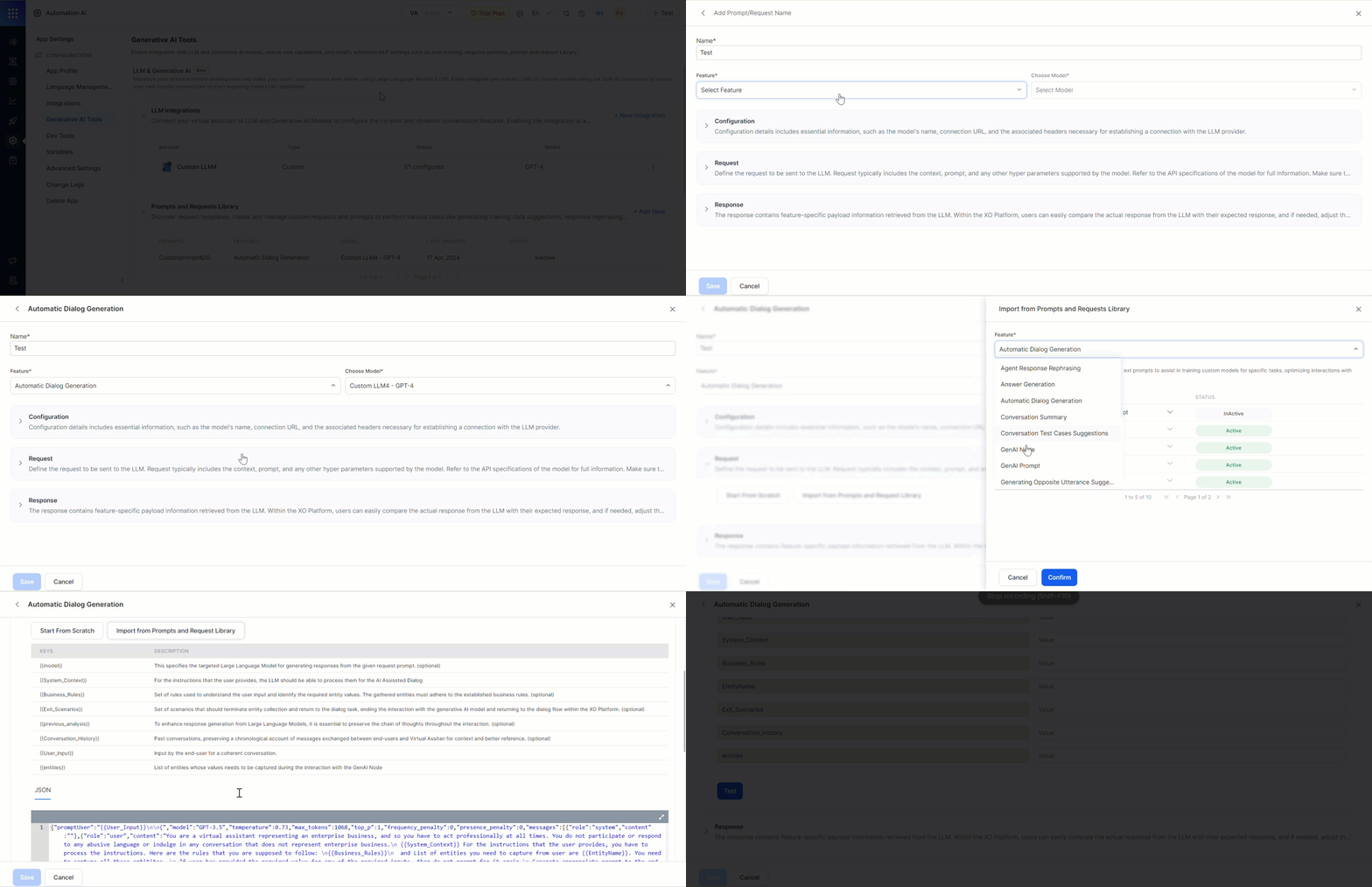 2. Select the **Feature**, **Model**, and **Prompt**. Hover and click **Preview Prompt** to review before importing.
You can interchange prompts between features.
3. Click **Confirm** to import the prompt into the JSON body.
**To create from scratch:**
Click **Start from scratch** and enter the JSON request for the LLM.
2. Select the **Feature**, **Model**, and **Prompt**. Hover and click **Preview Prompt** to review before importing.
You can interchange prompts between features.
3. Click **Confirm** to import the prompt into the JSON body.
**To create from scratch:**
Click **Start from scratch** and enter the JSON request for the LLM.
.png?fit=max&auto=format&n=p0ZZ6JYe_at1gZSG&q=85&s=0d51264be8b7490a9dfd1540d5e88eaa) 6. (Optional) Toggle **Stream Response** to enable streaming. Responses are sent incrementally in real time instead of waiting for the full response.
6. (Optional) Toggle **Stream Response** to enable streaming. Responses are sent incrementally in real time instead of waiting for the full response.
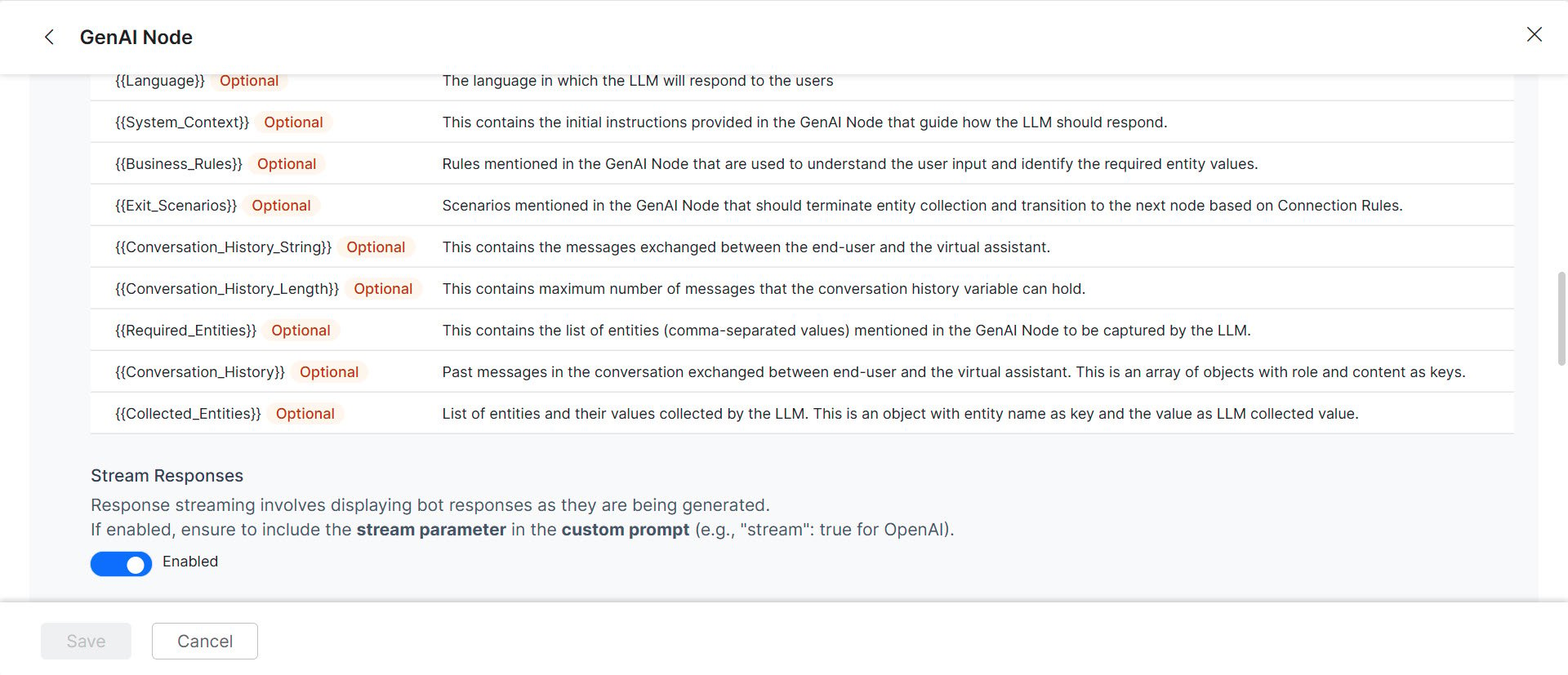 * Add `"stream": true` to the custom prompt when streaming is enabled. The saved prompt displays a "streaming" tag.
* Enabling streaming disables the "Exit Scenario" field.
Streaming applies only to Agent Node and Prompt Node features using OpenAI and Azure OpenAI models.
7. Fill in the **Sample Context Values** and click **Test**. If successful, the LLM response is displayed; otherwise an error appears. See [Dynamic Variables](/ai-for-service/automation/agent-node#reference-dynamic-variables)
* Add `"stream": true` to the custom prompt when streaming is enabled. The saved prompt displays a "streaming" tag.
* Enabling streaming disables the "Exit Scenario" field.
Streaming applies only to Agent Node and Prompt Node features using OpenAI and Azure OpenAI models.
7. Fill in the **Sample Context Values** and click **Test**. If successful, the LLM response is displayed; otherwise an error appears. See [Dynamic Variables](/ai-for-service/automation/agent-node#reference-dynamic-variables)
.png?fit=max&auto=format&n=p0ZZ6JYe_at1gZSG&q=85&s=894f0779eeab0e8ecf490bfa888d2870) 8. **Map the response key:** In the JSON response, double-click the key that holds the relevant information (for example, `content`). The Platform generates a **Response Path** for that location. Click **Save**.
8. **Map the response key:** In the JSON response, double-click the key that holds the relevant information (for example, `content`). The Platform generates a **Response Path** for that location. Click **Save**.
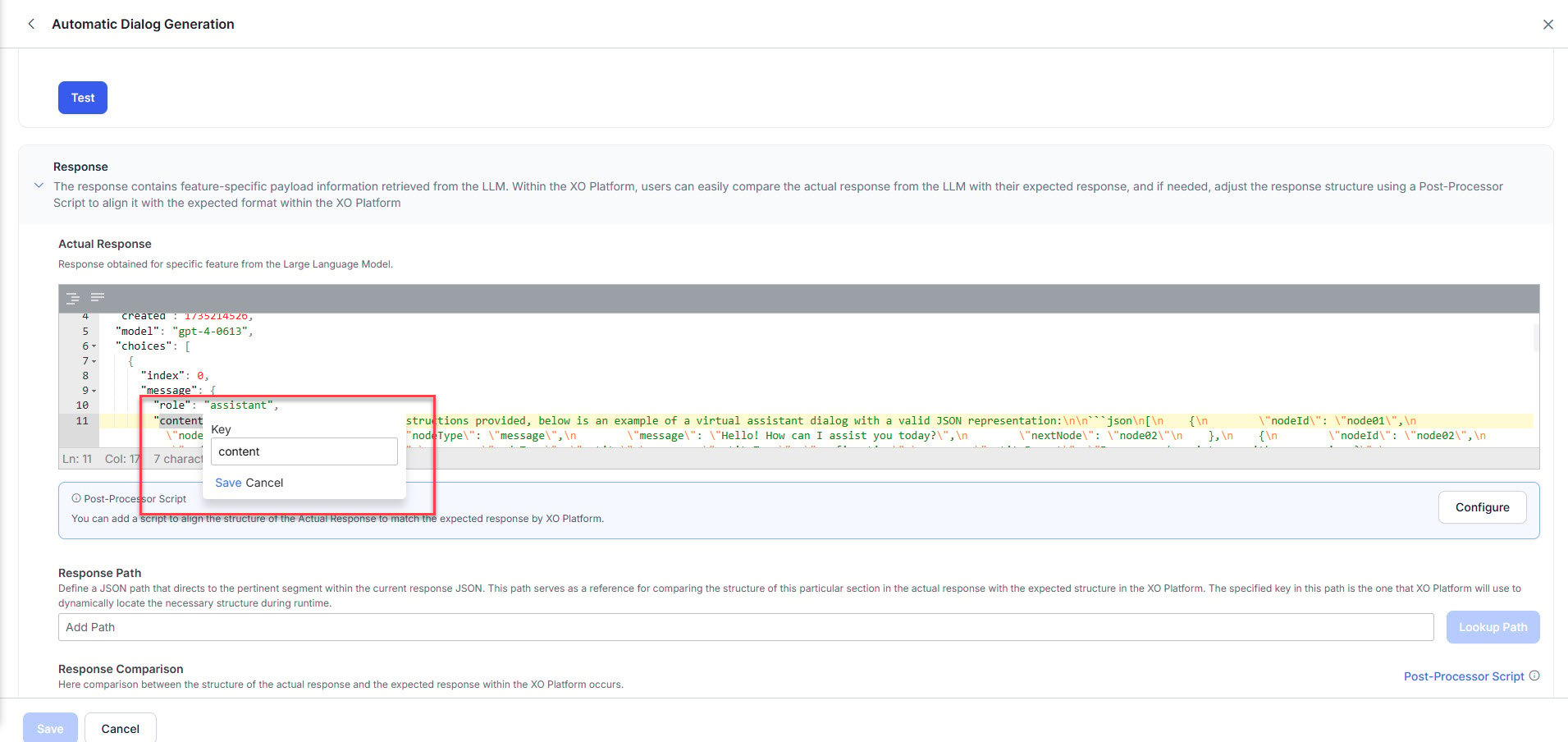 9. Click **Lookup Path** to validate the path.
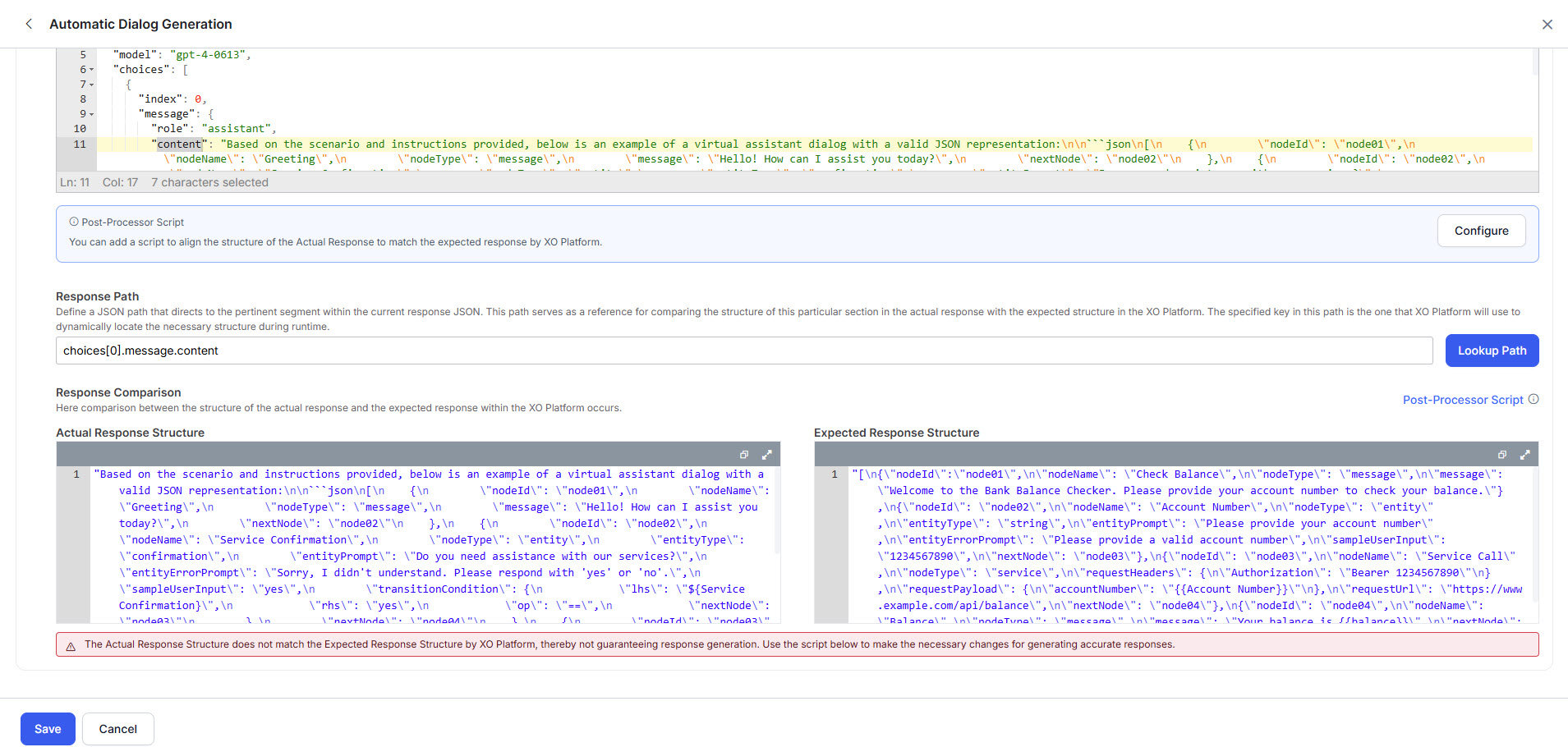 10. Review the **Actual Response** and **Expected Response**:
* **Green (match):** Click **Save**. Skip to step 12.
10. Review the **Actual Response** and **Expected Response**:
* **Green (match):** Click **Save**. Skip to step 12.
.png?fit=max&auto=format&n=p0ZZ6JYe_at1gZSG&q=85&s=8c06aaf48fbdb0108e5360f97f031915) * **Red (mismatch):** Click **Configure** to open the Post Processor Script editor.
* **Red (mismatch):** Click **Configure** to open the Post Processor Script editor.
.png?fit=max&auto=format&n=p0ZZ6JYe_at1gZSG&q=85&s=bfd3d366eb41692098b254f5abb41ec4) 1. Enter the **Post Processor Script** and click **Save & Test**.
1. Enter the **Post Processor Script** and click **Save & Test**.
.png?fit=max&auto=format&n=p0ZZ6JYe_at1gZSG&q=85&s=8be29ea18c7d5c3a1726ac29a3daa1e9) 2. Verify the result, then click **Save**. The responses turn green.
2. Verify the result, then click **Save**. The responses turn green.
.png?fit=max&auto=format&n=p0ZZ6JYe_at1gZSG&q=85&s=a041447dc16be795c13c77e04bbbdadf) 11. (Optional) If **Token Usage Limits** are enabled for your custom model, map the token keys for accurate tracking:
* **Request Tokens key:** `usage.input_tokens`
* **Response Tokens key:** `usage.output_tokens`
11. (Optional) If **Token Usage Limits** are enabled for your custom model, map the token keys for accurate tracking:
* **Request Tokens key:** `usage.input_tokens`
* **Response Tokens key:** `usage.output_tokens`
 Without this mapping, the Platform can't calculate token consumption, which may lead to untracked usage and unexpected costs.
12. Click **Save**. The prompt appears in the Prompts Library.
Without this mapping, the Platform can't calculate token consumption, which may lead to untracked usage and unexpected costs.
12. Click **Save**. The prompt appears in the Prompts Library.