

Agent States
Switch between states using the dropdown on the top left of the agent window.
The Publish Status indicator tracks the progress of each publish request and reports success or failure with details.
If the agent is trained in a language using NLP Version 2, a banner notifies you about the upcoming auto-upgrade to NLP Version 3.
Component Statuses
A Published task can’t be deleted. Admins can Suspend it if it’s no longer needed. A Suspended task can be Upgraded to create a Configured copy for further changes.
Publishing an Agent
Only the agent owner can publish. Developers with edit access can’t.- Open the agent and go to Deploy > Publish.
- All components are selected by default. Deselect any you don’t want to publish, then click Next.
- Enter comments for the admin and click Confirm.
Publishing without the NL Model leaves unpublished training data associated with the in-development version of the respective tasks.
Publishable Components
Flows, Tasks & Languages
Natural Language
NL Model The NL Model publishes training data for specific intents without publishing task definitions — letting NLP trainers and developers work independently. Steps to publish training data for specific intents:- Expand Natural Language > NL Model and click All Components.
- Select the relevant components:
| Component | Behavior |
|---|---|
| ML Utterances | Replaces old utterances with the In Development set. Click Customize to select utterances for specific tasks. 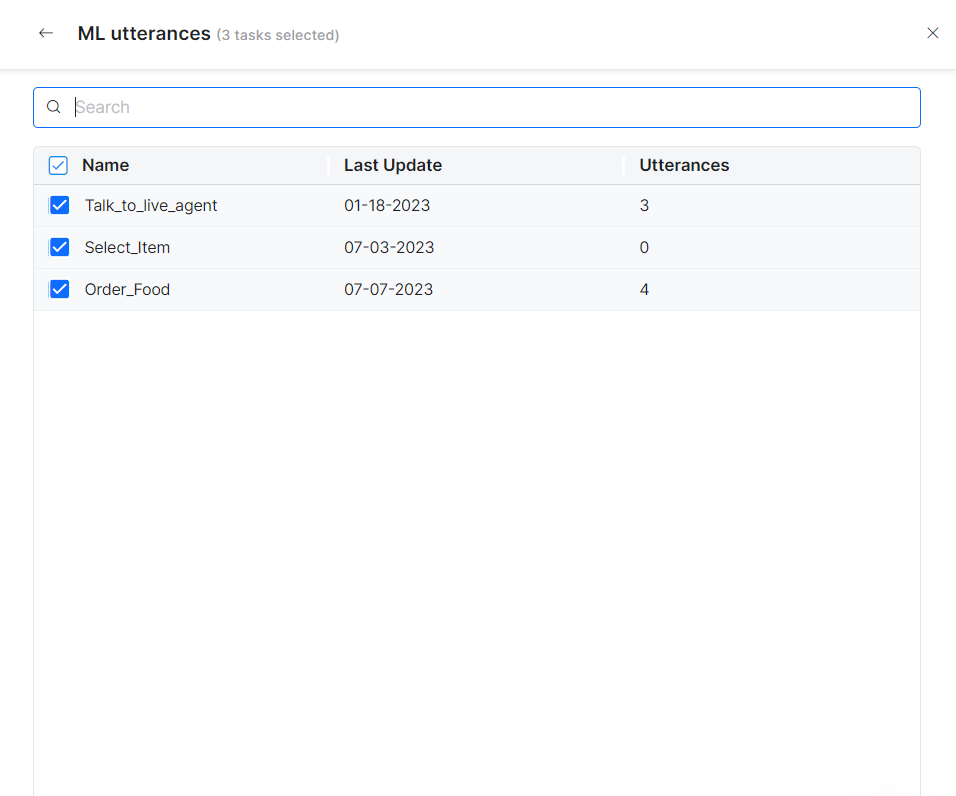 |
| Patterns | Replaces old patterns. Click Customize to select updated patterns. 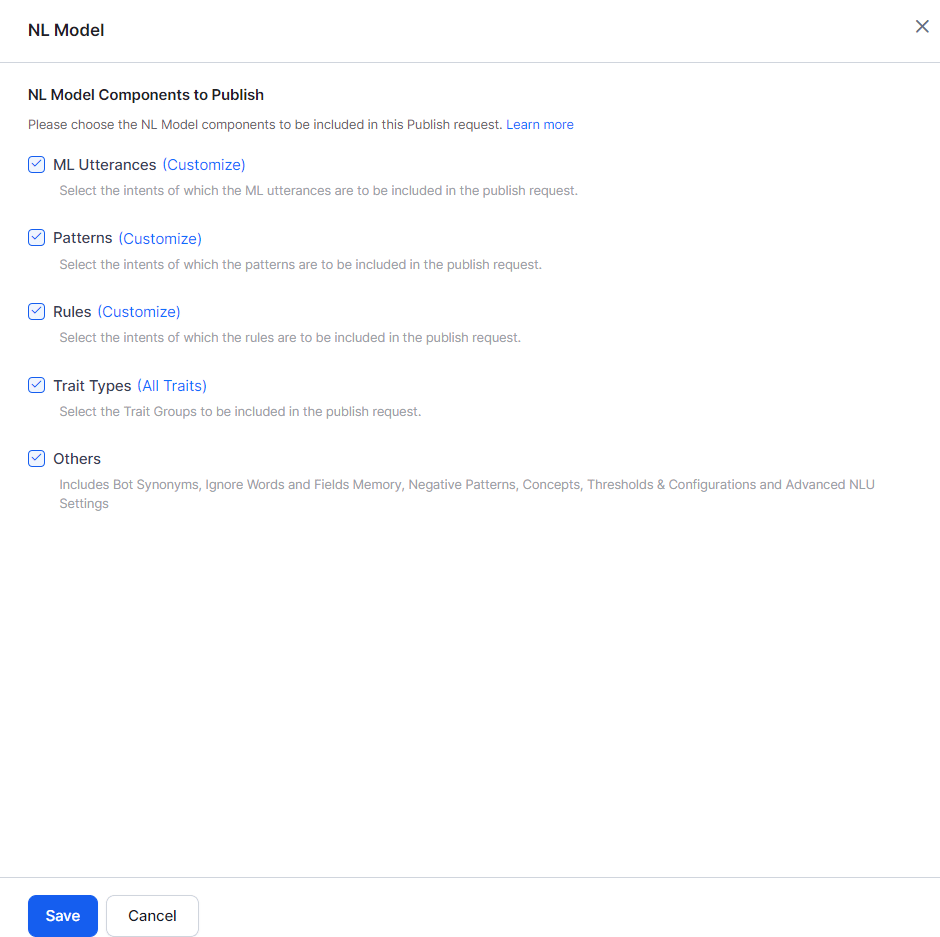 |
| Rules | Replaces intents with rules for Dialog Execution and Knowledge Graph detection. Click Customize to select specific rules. |
| Trait Types | Replaces traits in the Published version with the In Development set. |
| Others | Replaces Bot Synonyms, Utterances and NER, Ignore Words and Field Memory, Entity Patterns and Negative Patterns, and Entity Synonyms. |
If Dialog Tasks are selected under Publish > Tasks, their training data is published automatically and NL Model components can’t be customized separately. Deselect the tasks first to customize ML Utterances, Patterns, and Rules individually. Selecting NL Model components and then adding Dialog Tasks triggers a warning to reset publishable components.
Channels
Replaces the Published channel configuration with the In Development version — including new channels, updated configurations, and disabled channels.Extensions
Settings
Excluded Components
The following components are outside the publishing workflow — they either don’t affect end users directly or only do so as part of a task definition. Both agent states show the same information for these:- Batch Testing (custom suites and test reports)
- Manage Developer Access
- App Creation, Resetting, and Deletion
- Language enablement: Enabling a new language in the In Development version requires re-publishing all components for that language.
Publication Approval
When you publish, the platform sends an approval request to the admin. Behavior depends on the agent’s Purpose:Auto Approval
Admins can enable auto-approval for an agent:- Open the Platform Admin Console.
- Go to Bots Management > Consumer Bots or Enterprise Bots.
- Click the more icon for the agent and select Bot Settings.
- Select Auto Approve > Auto Approve all publish requests for this bot.