> ## Documentation Index
> Fetch the complete documentation index at: https://koreai-content-gov.mintlify.site/llms.txt
> Use this file to discover all available pages before exploring further.
# Collaborative Development
The platform supports cross-domain app sharing. You can share your app with one or more developers from the same or different enterprises, enabling them to edit tasks, channels, and other app settings.
***
## Share an App
### From the Builder
1. Log in to the platform and select the app you want to share.
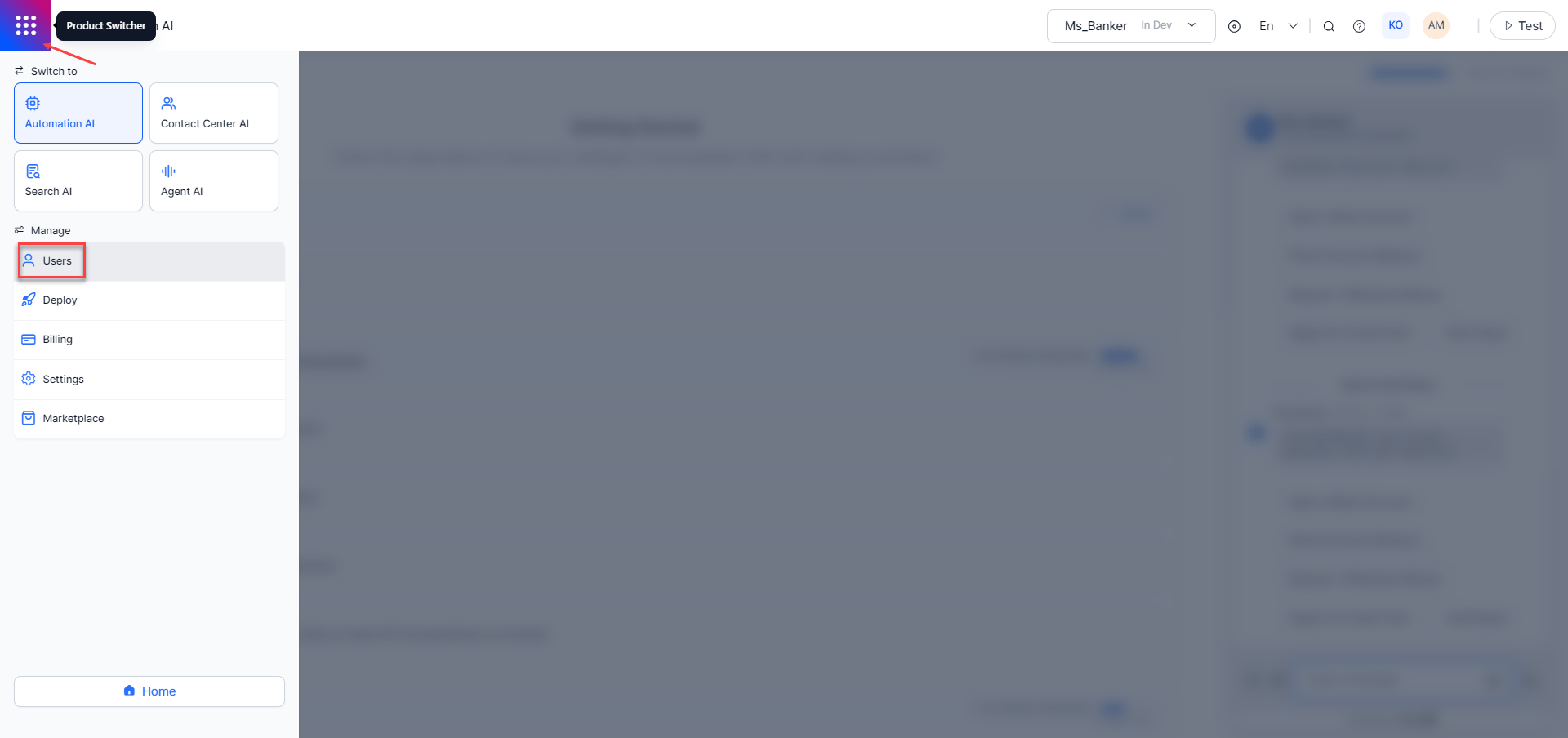
2. Go to **Manage > Users** via the **Product Switcher**.
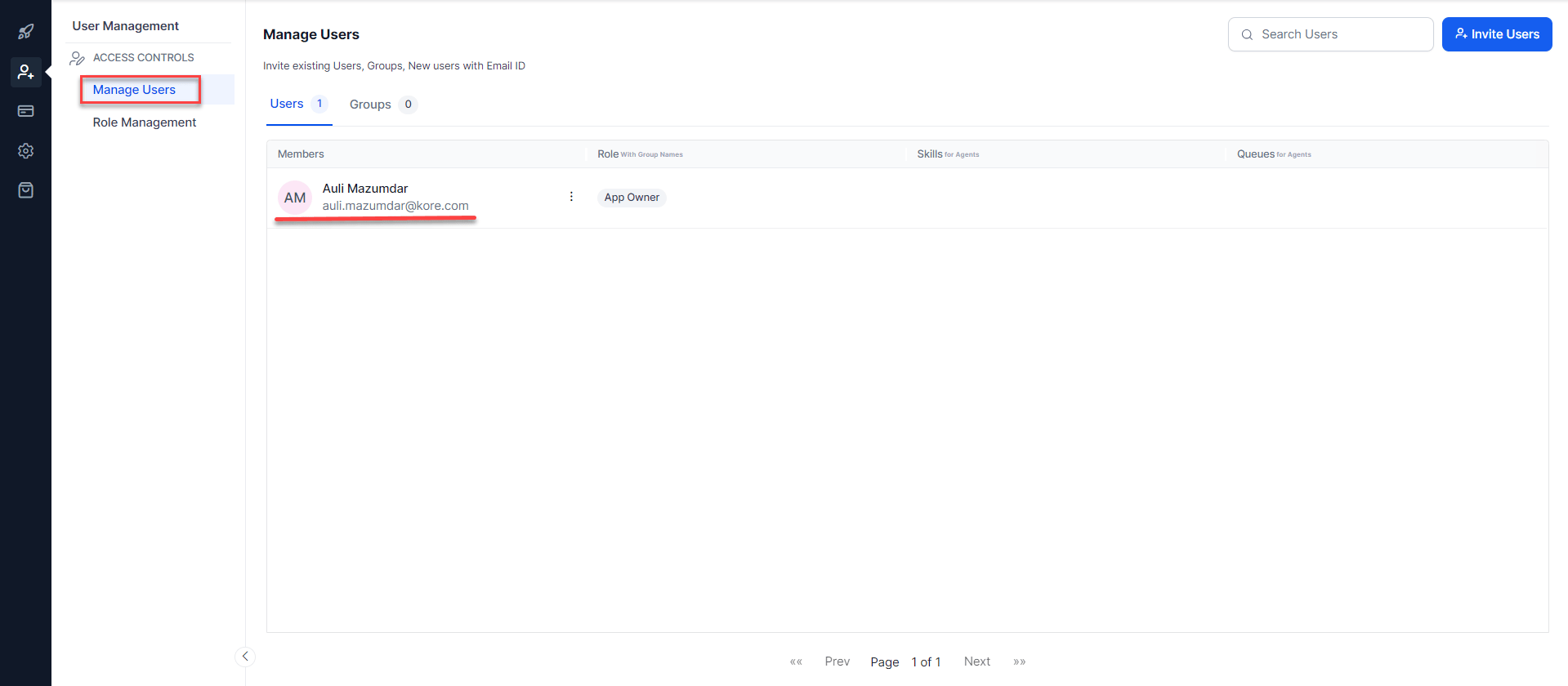
 3. In the left menu, click **Manage Users**. Developers with any **App Admin** permission can invite new developers. The App Owner appears on this page by default.
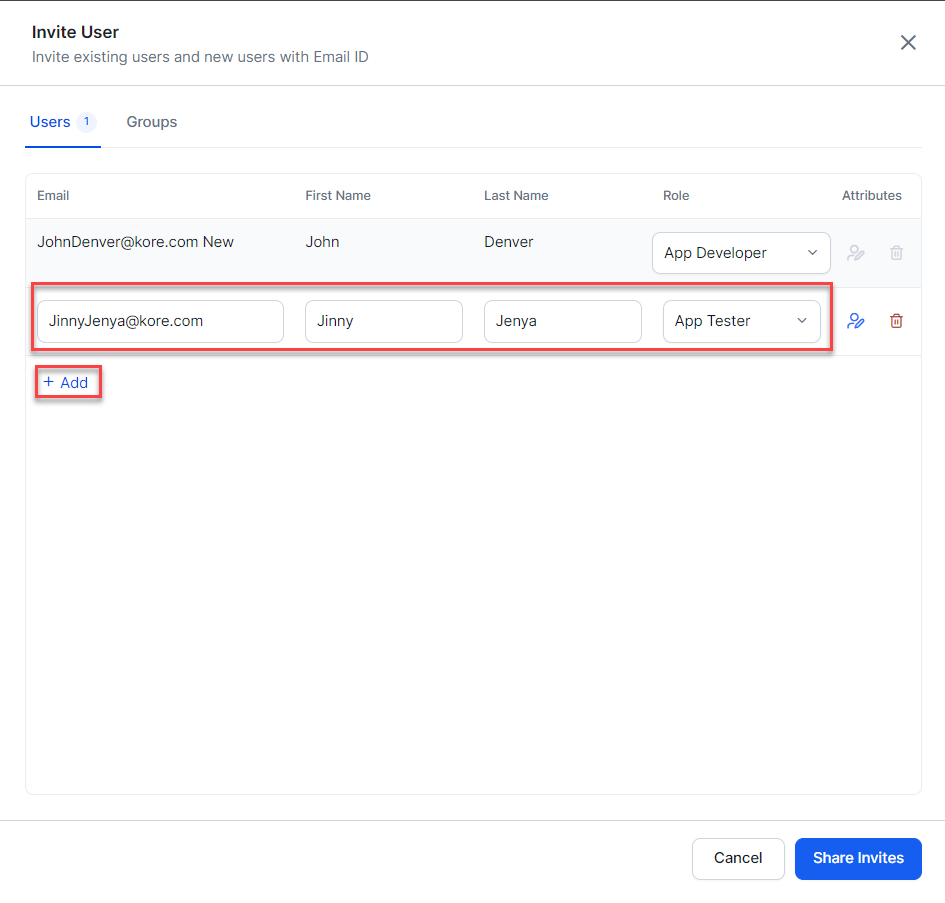
 4. Click **Invite Users**. Enter the developer's details and role, then click **+ Add**. You can add multiple developers at once.
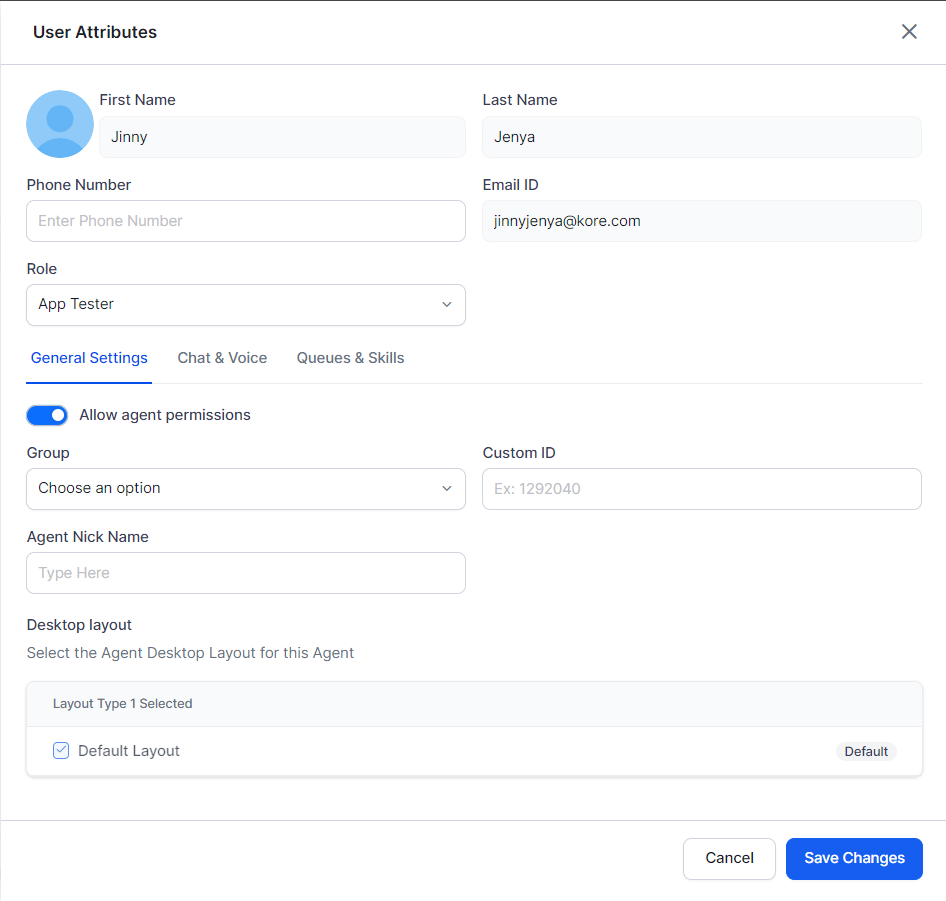
 To assign a group and role, select the **User Attributes** icon next to the user to open the **User Attributes** popup. You must select a role before accessing user attributes.
 5. Click **Share Invites** to confirm and share the app.
6. You can also use the **Invite User** option from the Dashboard to add users to your account.
5. Click **Share Invites** to confirm and share the app.
6. You can also use the **Invite User** option from the Dashboard to add users to your account.
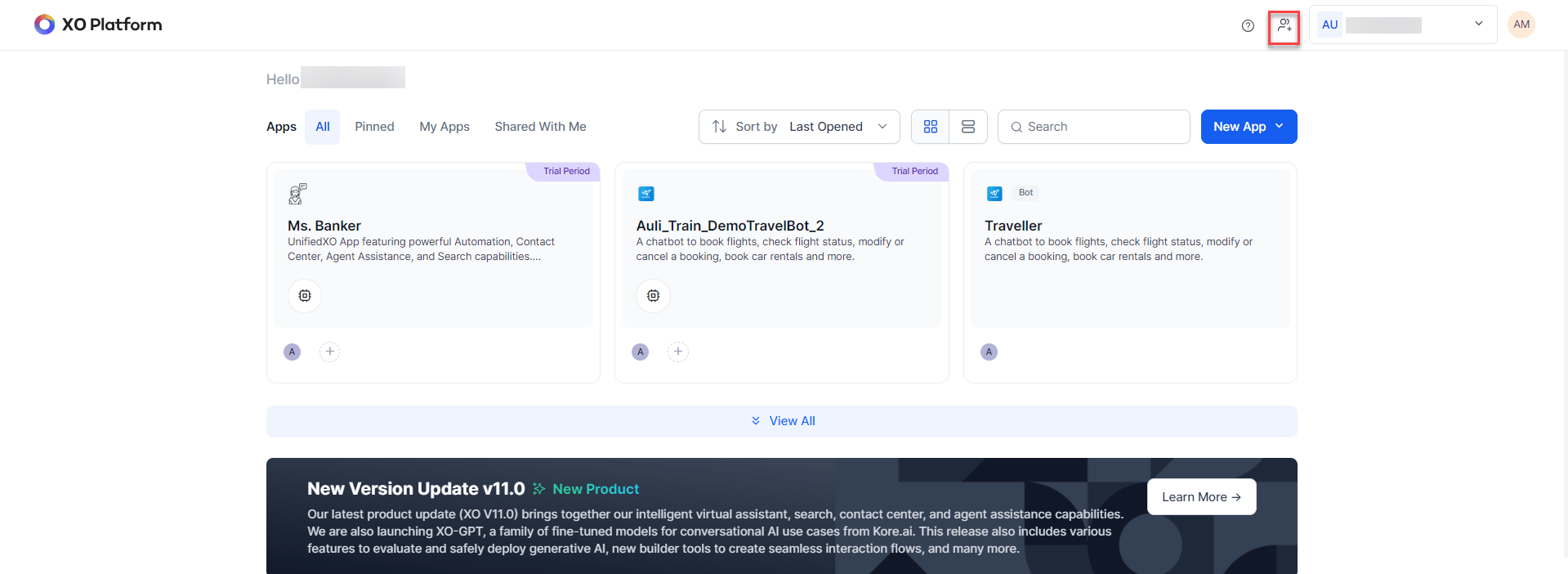 To add users to a workspace and invite them to your agent from Bot Builder, see [Invite Members](/ai-for-service/getting-started/#invite-users).
***
### From the Admin Console
Use this option if you don't have permission to invite developers directly.
1. Log in at Platform and select **Go To Admin Console**.
To add users to a workspace and invite them to your agent from Bot Builder, see [Invite Members](/ai-for-service/getting-started/#invite-users).
***
### From the Admin Console
Use this option if you don't have permission to invite developers directly.
1. Log in at Platform and select **Go To Admin Console**.
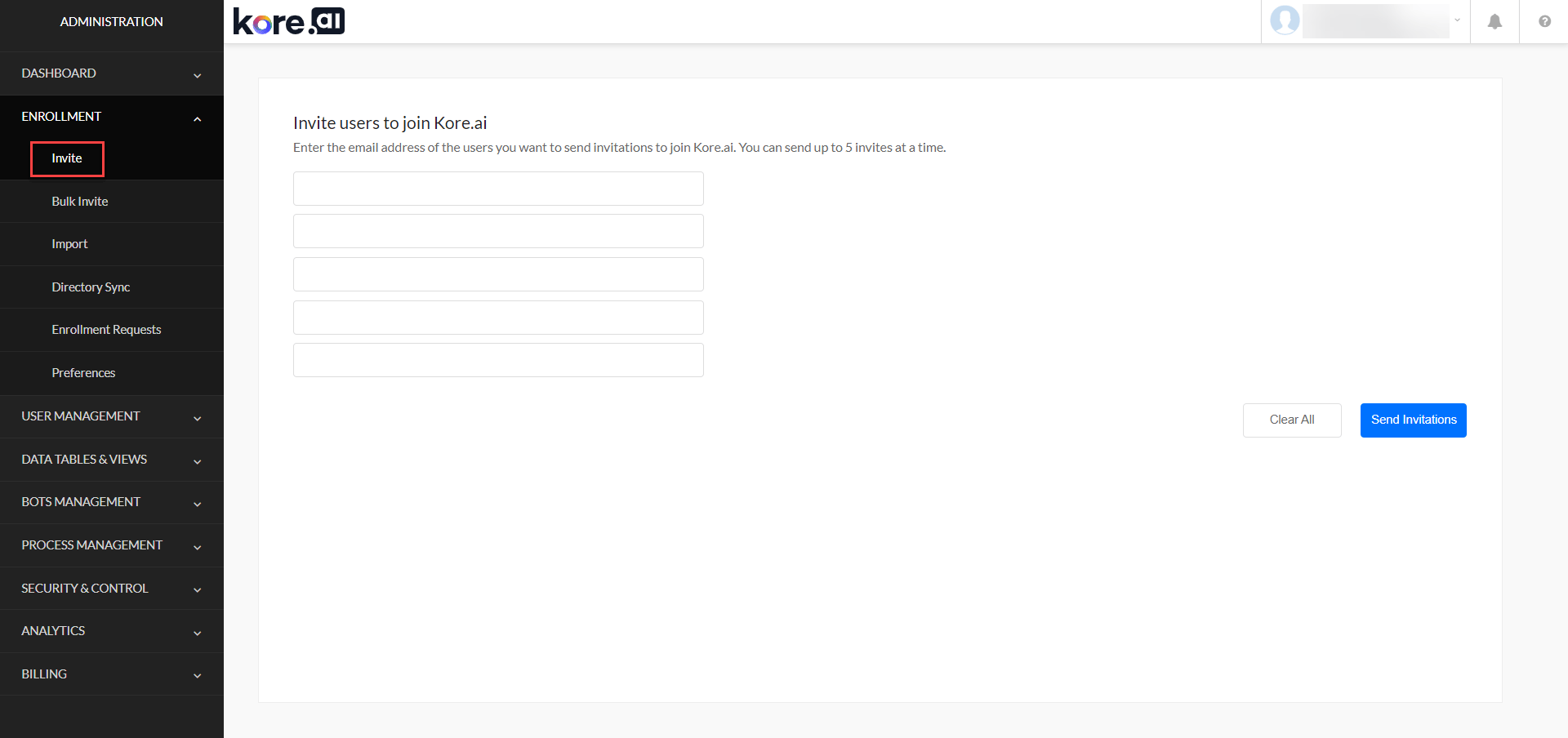
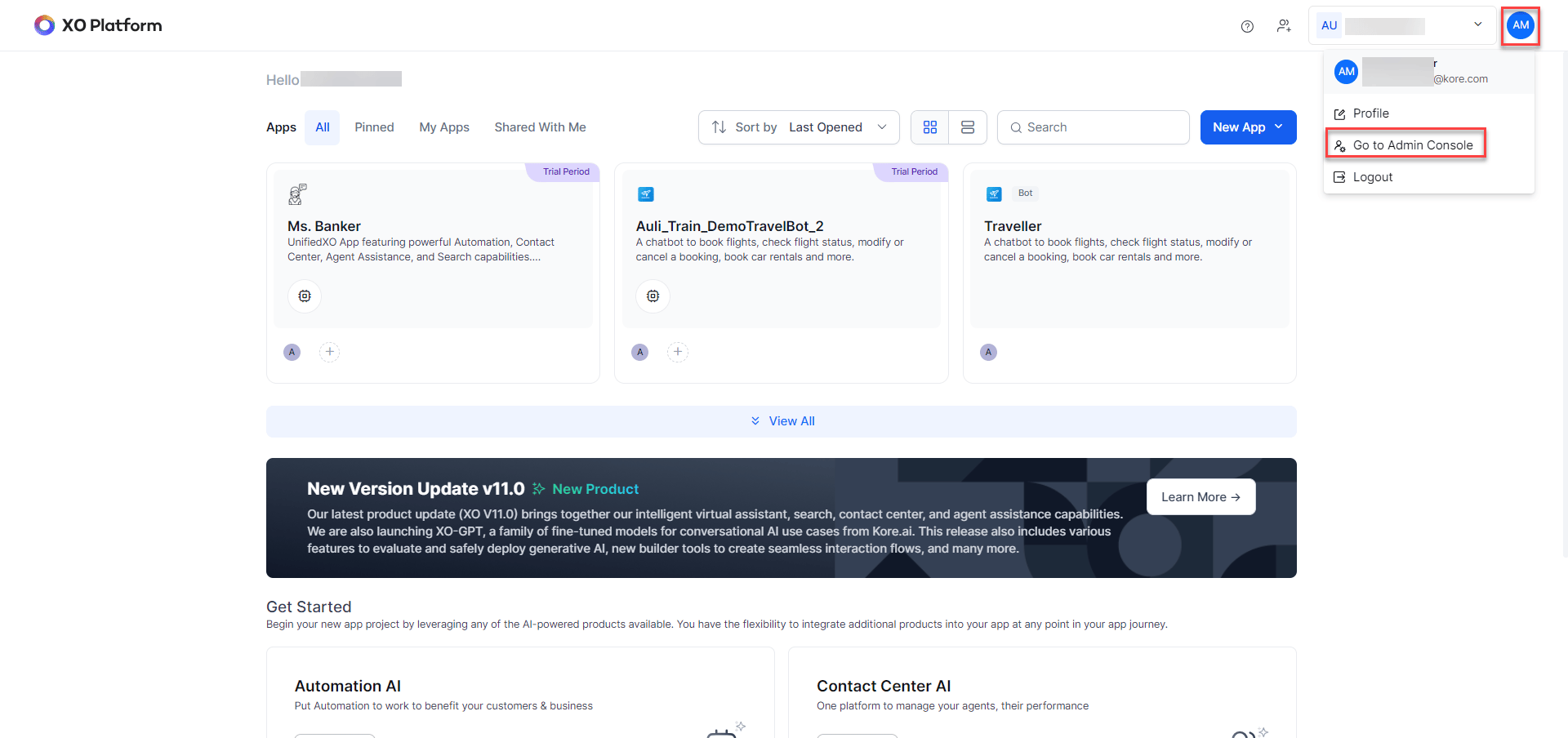 2. In **Bot Administration**, do one of the following:
* Go to **User Management > Users** and click **Invite new users**.
* Go to **Enrollment > Invite**.
3. Enter up to 5 email addresses and click **Send Invitations**.
2. In **Bot Administration**, do one of the following:
* Go to **User Management > Users** and click **Invite new users**.
* Go to **Enrollment > Invite**.
3. Enter up to 5 email addresses and click **Send Invitations**.
 4. The invitee must accept the invitation to gain **App User** access. Once accepted, their username appears in the enterprise account user list.
***
### Assign App Builder Access
To grant Builder access to an app user:
1. In the Admin Console, double-click the user you want to modify.
2. Set the **Admin** and **Platform Access** roles as needed. See [Role Management](/ai-for-service/administration/role-management).
***
## Manage Share Settings
From the settings icon (⋮) next to each developer, you can:
| Action | Description |
| -------------------- | ---------------------------------------------------------------------------------------------------------------------------------- |
| **Delete** | Removes the developer's access to the app immediately. |
| **Promote As Owner** | Makes the selected developer the App Owner. You are immediately removed as owner and can no longer manage developers for this app. |
Only the App Owner can modify share settings for an app.
***
## Working with Shared Apps
When a task, channel, or flow is claimed for editing:
* The lock expires after **30 minutes** or when you exit editing mode, whichever comes first.
* After **25 minutes**, you are prompted to extend the lock.
* If the lock expires, your changes are automatically saved, editing mode ends, and the lock is released.
If the resource is already claimed, you see: *"Oops! The app is currently being edited by \."*
Only the App Owner and shared developers can access and edit tasks, channels, or flows.
***
4. The invitee must accept the invitation to gain **App User** access. Once accepted, their username appears in the enterprise account user list.
***
### Assign App Builder Access
To grant Builder access to an app user:
1. In the Admin Console, double-click the user you want to modify.
2. Set the **Admin** and **Platform Access** roles as needed. See [Role Management](/ai-for-service/administration/role-management).
***
## Manage Share Settings
From the settings icon (⋮) next to each developer, you can:
| Action | Description |
| -------------------- | ---------------------------------------------------------------------------------------------------------------------------------- |
| **Delete** | Removes the developer's access to the app immediately. |
| **Promote As Owner** | Makes the selected developer the App Owner. You are immediately removed as owner and can no longer manage developers for this app. |
Only the App Owner can modify share settings for an app.
***
## Working with Shared Apps
When a task, channel, or flow is claimed for editing:
* The lock expires after **30 minutes** or when you exit editing mode, whichever comes first.
* After **25 minutes**, you are prompted to extend the lock.
* If the lock expires, your changes are automatically saved, editing mode ends, and the lock is released.
If the resource is already claimed, you see: *"Oops! The app is currently being edited by \."*
Only the App Owner and shared developers can access and edit tasks, channels, or flows.
***