

Configure Feedback Messages
The Feedback Settings section includes subsections for Agentic Feedback, Dialog Task Feedback, Answers Feedback, FAQ Feedback, Summary Feedback, Overall Widget Feedback, and Landing Summary Feedback. Each subsection includes predefined messages that you can edit.- Sign in to Platform.
-
Go to Agent AI > Configurations > Feedback Settings.
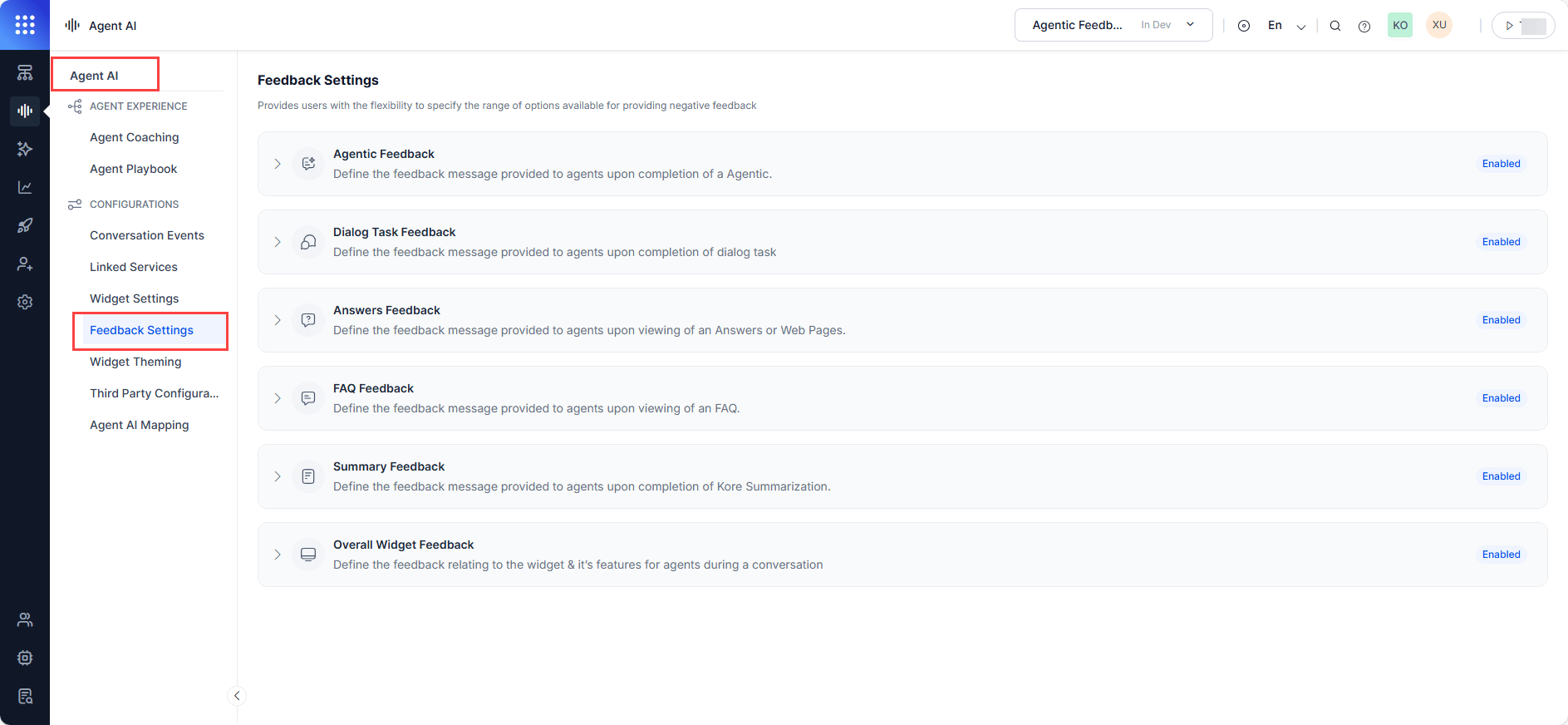
- Expand any subsection — Agentic Feedback, Dialog Task Feedback, Answers Feedback, FAQ Feedback, Summary Feedback, Overall Widget Feedback, or Landing Summary Feedback.
-
Use the toggle to turn the subsection on or off.
- For Overall Widget Feedback, expand Positive or Negative Feedback separately.
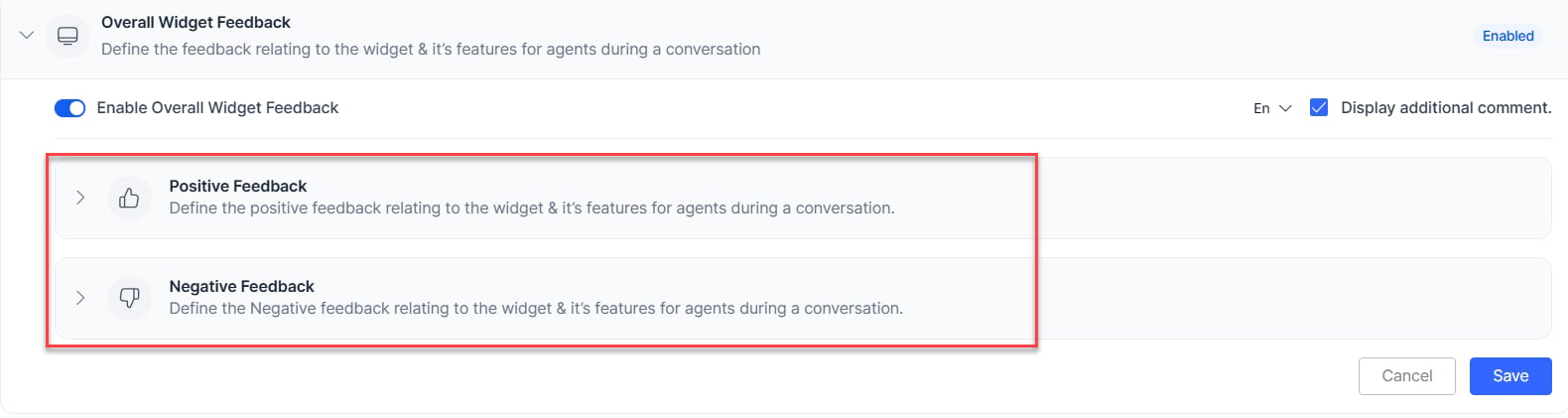
- Select the edit icon on any feedback message.
- Edit the message and press Enter to save.
Turn On or Off Feedback Messages
Only active (turned on) feedback messages appear in the widget. Up to five of the six default messages can be active at a time.- Select the Enable/Disable toggle on a feedback message.
- Select Save.
Turn On or Off the Additional Comments Box
The Display additional comment box appears in the widget only if you turn it on here.-
Select or clear the Display additional comment checkbox.
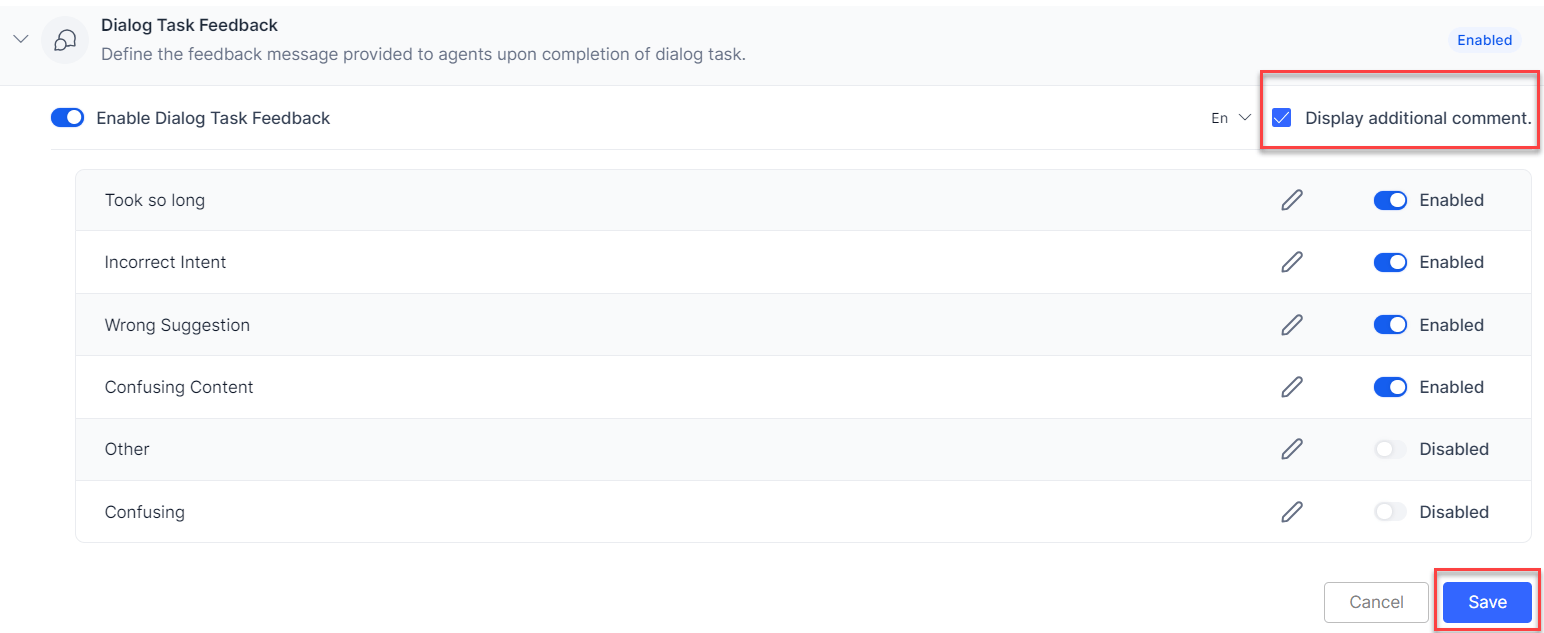
- Select Save.
Customize Feedback Language
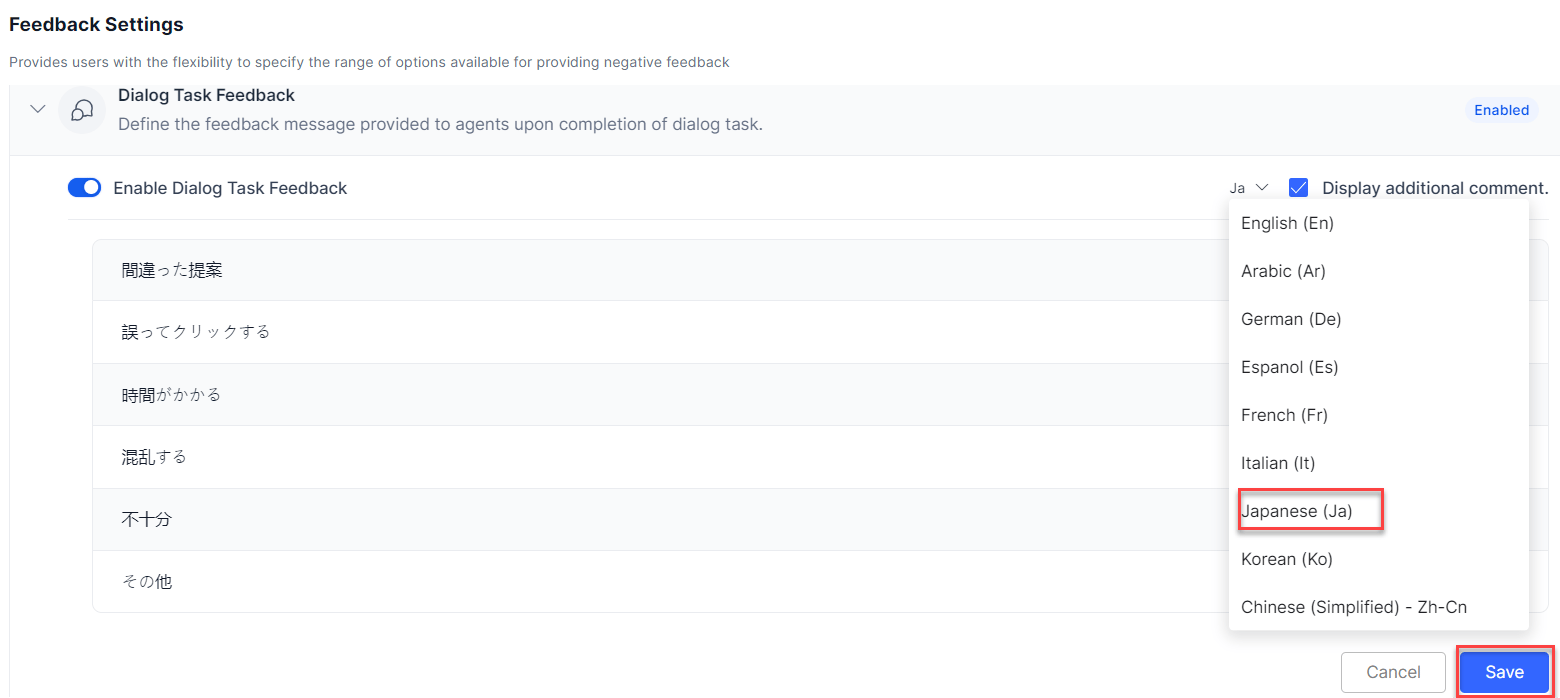
The system pre-selects the app’s default language. You can change the display language for feedback messages.- Select the language selection dropdown list next to the Display additional comment box.
-
Select a language and select Save.
Feedback in the Agent AI Widget
Feedback messages and the additional comment box appear in the widget only after you turn them on in Feedback Settings. If you don’t configure them, only the thumbs-up and thumbs-down icons appear.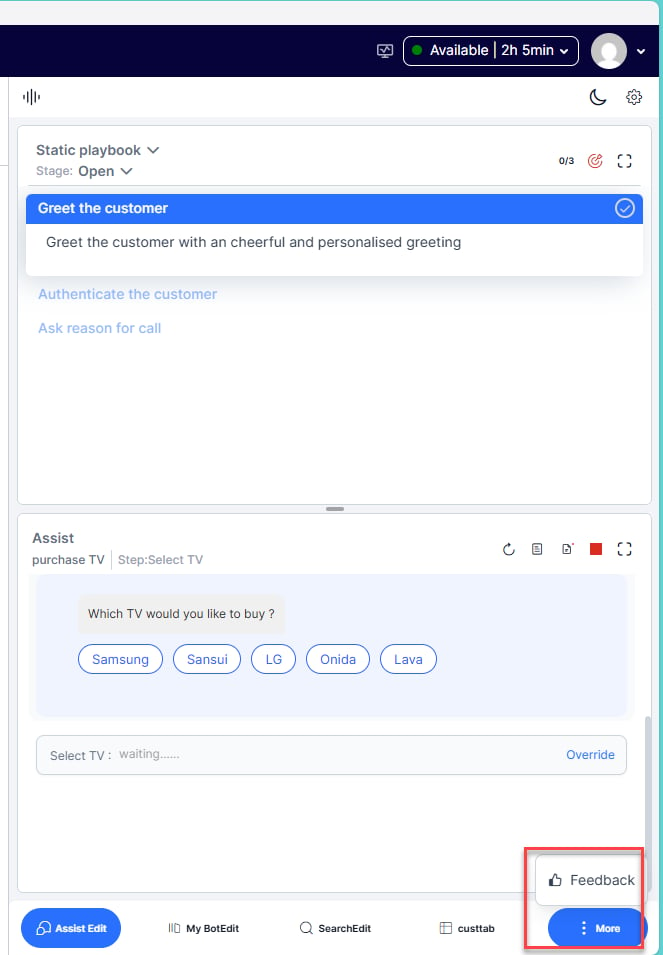
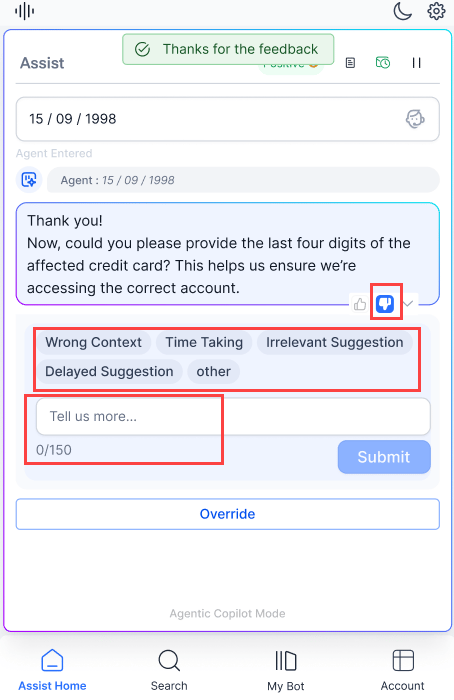
The Submit button appears only when at least one feedback message or the additional comment box is active in the widget.