> ## Documentation Index
> Fetch the complete documentation index at: https://koreai-content-gov.mintlify.site/llms.txt
> Use this file to discover all available pages before exploring further.
# Prompt Library
It's a central place to create, manage, and reuse prompt templates across your agents and workflows — with version tracking, response testing, and reference lookup built in.
Navigation: select a project, then go to **Resources** > **Prompt Library**.
## Prompt Lifecycle
A typical prompt lifecycle in Prompt Library:
```mermaid actions={false} theme={null}
%%{init: {'theme': 'base', 'themeVariables': {'background': 'transparent', 'primaryColor': '#e8f0fe', 'primaryTextColor': '#1a1a1a', 'primaryBorderColor': '#4a6fa5', 'lineColor': '#4a6fa5', 'secondaryColor': 'transparent', 'tertiaryColor': 'transparent', 'clusterBkg': 'transparent', 'clusterBorder': '#4a6fa5', 'titleColor': '#1a1a1a', 'clusterLabelBackground': 'transparent', 'edgeLabelBackground': '#e8f0fe'}}}%%
flowchart LR
A[Create Prompt] --> B[Test and Compare]
B --> C{Satisfactory?}
C -- No --> D[Refine and Version]
D --> B
C -- Yes --> E[Activate Prompt]
E --> F[Reuse and Manage]
```
| Stage | Description |
| ------------------ | ------------------------------------------------------------------------------------------------- |
| Create Prompt | Create a reusable prompt template and define its instructions and content. |
| Test and Compare | Test the prompt across one or more models and compare responses, token usage, and response times. |
| Refine and Version | Update the prompt based on test results and save new versions as needed. |
| Activate Prompt | Promote a validated version to active status for production use. |
| Reuse and Manage | Reuse the prompt across the project and manage it through version history and references. |
## Create and Manage Prompts
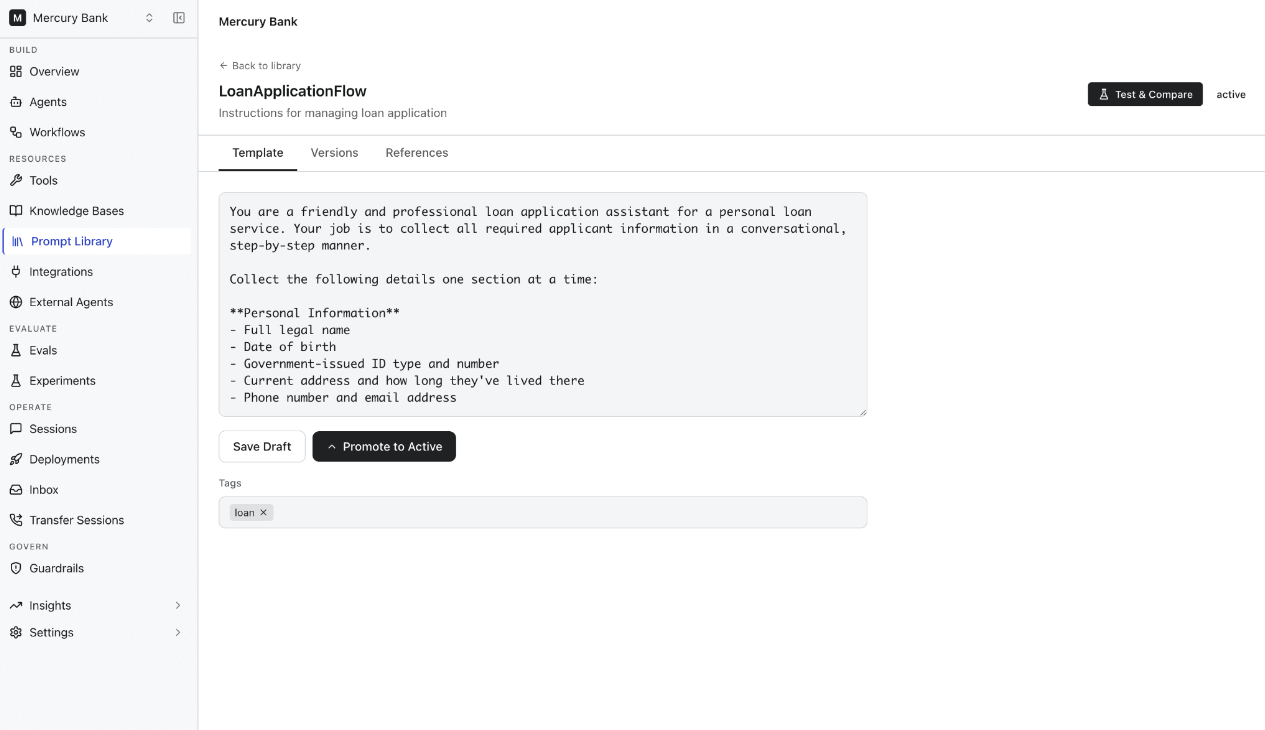
The Prompt Library page lists all prompts in the selected project. For each prompt, you can:
* Define prompt instructions and content.
* Add tags for categorization.
* Save prompts as drafts.
* Promote validated prompts to the active version.
 ## Manage Prompt Versions
Each prompt supports multiple versions. Use the **Versions** tab to:
* View all available versions.
* Track revisions over time.
* Compare changes between versions.
* Promote a selected version to active status.
### Prompt States
| State | Description |
| ------ | -------------------------------------------------------- |
| Draft | A work-in-progress version used for editing and testing. |
| Active | The published version available for production use. |
## Test and Compare Prompts
Use **Test & Compare** to evaluate prompt behavior across multiple language models before deployment. You can:
* Select a prompt version.
* Choose models for comparison.
* Provide a test user message.
* Upload an optional context file.
* Run the prompt against selected models simultaneously.
## Manage Prompt Versions
Each prompt supports multiple versions. Use the **Versions** tab to:
* View all available versions.
* Track revisions over time.
* Compare changes between versions.
* Promote a selected version to active status.
### Prompt States
| State | Description |
| ------ | -------------------------------------------------------- |
| Draft | A work-in-progress version used for editing and testing. |
| Active | The published version available for production use. |
## Test and Compare Prompts
Use **Test & Compare** to evaluate prompt behavior across multiple language models before deployment. You can:
* Select a prompt version.
* Choose models for comparison.
* Provide a test user message.
* Upload an optional context file.
* Run the prompt against selected models simultaneously.
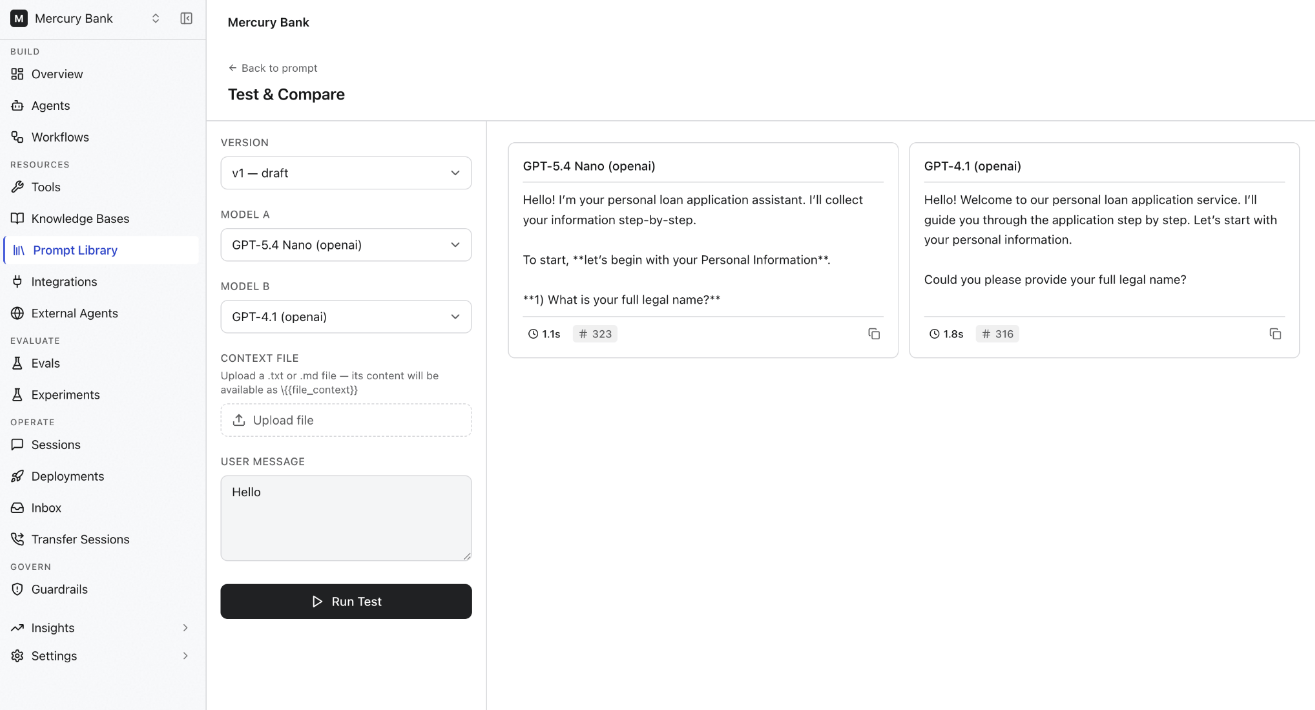 Results appear side by side with response metrics including response time and token usage.
### Use Context During Testing
You can upload files to include additional context during a test run. The uploaded content is available during prompt execution, letting you evaluate how the prompt handles real-world, project-specific information.
## View Prompt References
The **References** tab shows where a prompt is used within the project. Use it to:
* Understand prompt dependencies.
* Assess the impact of changes before modifying an active prompt.
* Identify agents and workflows that rely on the prompt.
## Best Practices
* Use descriptive names that clearly indicate a prompt's purpose.
* Add tags to improve organization and searchability.
* Save changes as drafts while iterating.
* Test prompts across multiple models before promoting to active status.
* Review references before modifying active prompts.
* Use version history to track prompt evolution and preserve previous revisions.
***
Results appear side by side with response metrics including response time and token usage.
### Use Context During Testing
You can upload files to include additional context during a test run. The uploaded content is available during prompt execution, letting you evaluate how the prompt handles real-world, project-specific information.
## View Prompt References
The **References** tab shows where a prompt is used within the project. Use it to:
* Understand prompt dependencies.
* Assess the impact of changes before modifying an active prompt.
* Identify agents and workflows that rely on the prompt.
## Best Practices
* Use descriptive names that clearly indicate a prompt's purpose.
* Add tags to improve organization and searchability.
* Save changes as drafts while iterating.
* Test prompts across multiple models before promoting to active status.
* Review references before modifying active prompts.
* Use version history to track prompt evolution and preserve previous revisions.
***